Getting started
Firecrest is multi-tenant: every fire brigade is its own department. A department is created the first time an officer registers; everyone else joins via an invite link.
The path you follow depends on whether you are the first officer standing up a new department, or a member joining a department that is already on Firecrest.
-
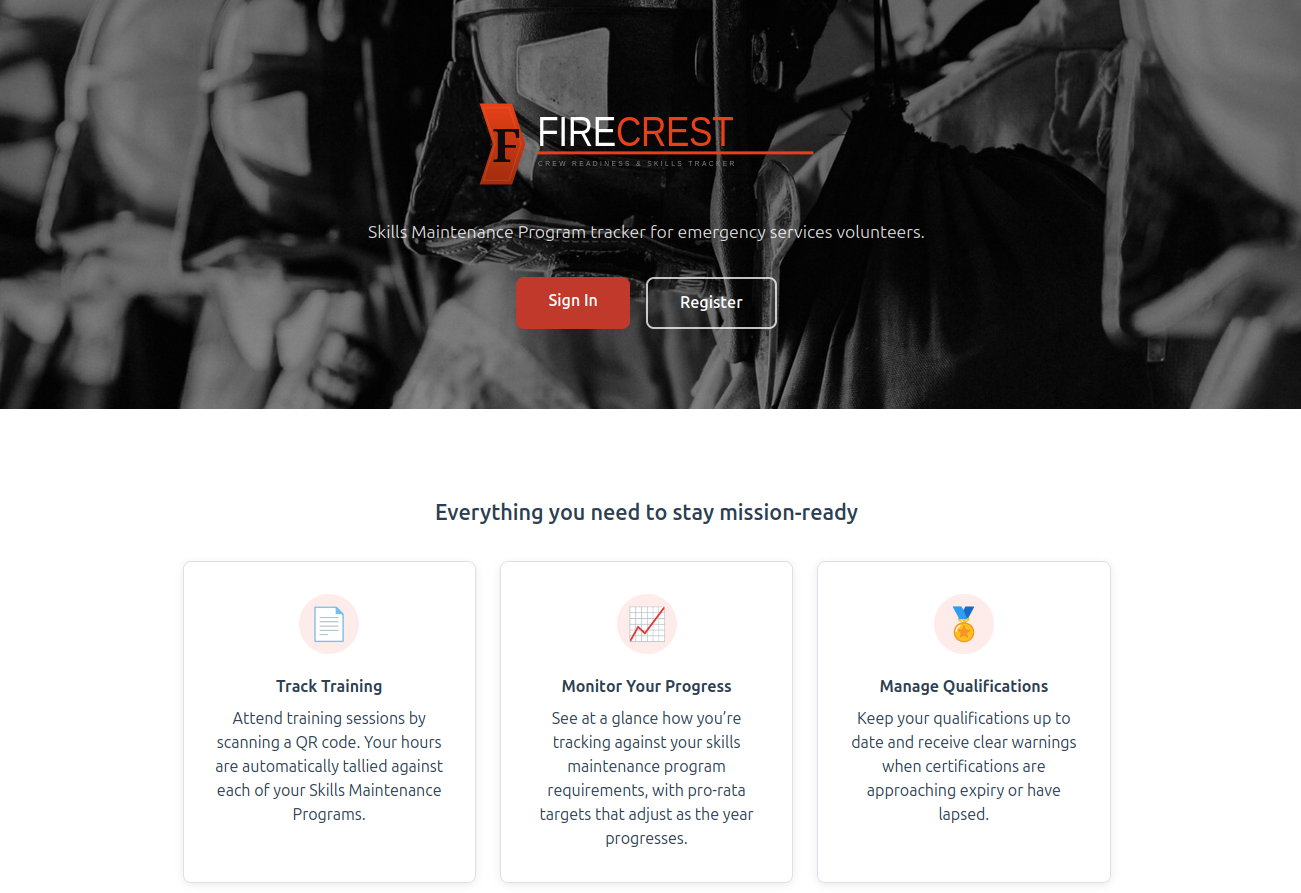
Go to the Firecrest landing page and click Register.
-
Fill in your department name (e.g. River Valley Rural Fire Brigade) and a short URL slug (e.g. river-valley-rfb). The slug is suggested automatically from the department name — you can edit it. Lowercase letters, numbers and hyphens only.
-
Enter your own full name, email address and a password. You will be the first officer of the new department.
-
Click Create Department. Your department is created and you're taken straight into the app.
-
Verify your email address by clicking the link sent to the address you registered. Until you verify, a yellow banner reminds you on every page.
-
Head to Department Settings to set your timezone, grab your invite link, and send invitations to your members.
Follow the setup guide
A Getting Started panel appears in the corner on every page until your department is set up. It walks you through the five essentials — see the Setup guide.
-
Your officer will send you an invite link — either by email or as a printed QR code at the station.
-
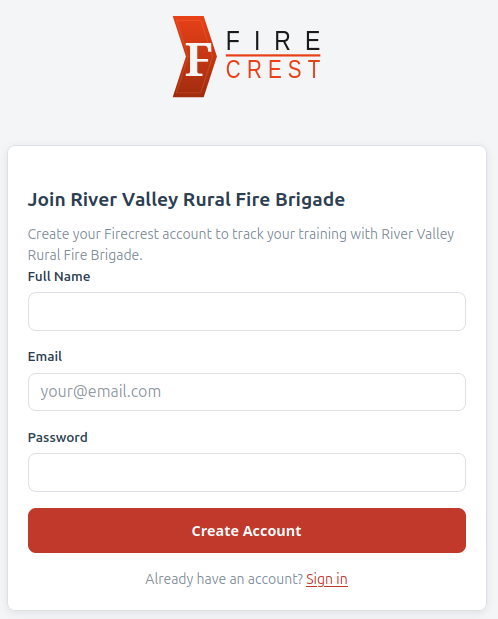
Open the link. You will see the Join Department Name form.
-
Enter your full name, email address and a password. Click Create Account.
-
You will see an Account Pending Approval screen — this is normal. A department officer will see you in their pending list and approve you. You will receive an email when that happens.
-
After approval, log in with your email and password — you're taken straight into the app. Verify your email address by clicking the link Firecrest sent you on registration.
Use the invite link, not the public sign-up form
The Sign Up button on the Firecrest home page is for officers starting a brand new department. If you're joining an existing department, only the invite link from your officer will get you to the right place — using the public sign-up form by mistake creates an empty, unrelated department.
After registration
Whether you are an officer or a member, every member of Firecrest needs:
- A password — to log in to the website (you must be signed in to record attendance at a session)
- A verified email — so you receive attendance confirmations, invitations, and qualification-expiry warnings
Your password and email can be changed any time from My Profile.