Members
The Admin → Members page lists everyone in your department. By default inactive and resigned members are hidden — toggle Show inactive in the top right to include them.
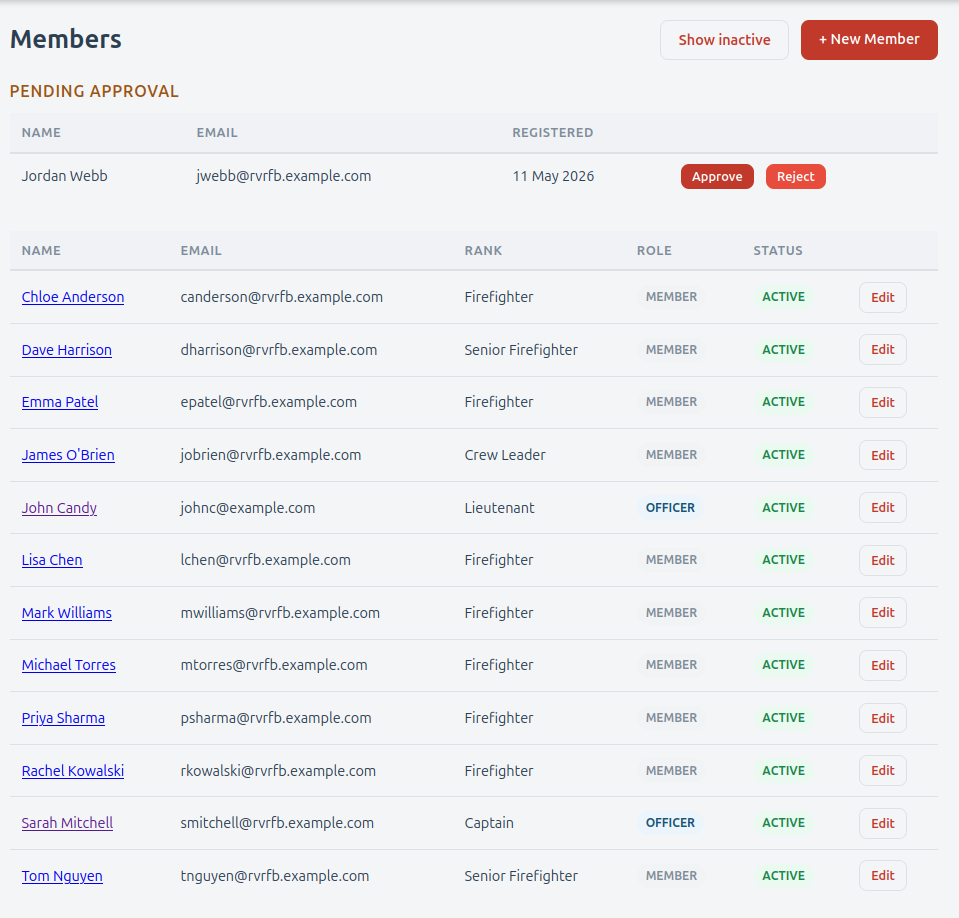
Pending approval
When a person self-registers via your invite link, they appear as Pending at the top of the Members page in a dedicated Pending Approval table. The Members entry in the Admin nav menu also shows a small red count badge while there are pending registrations, so you don't have to remember to check.
For each pending entry you can:
- Approve — sets their status to active. They get a welcome email and can log in immediately.
- Reject — permanently deletes the registration. The browser asks you to confirm first. Use this for spam, duplicates, or anyone who registered by mistake.
If you reject by accident, the person can simply re-register via the same invite link.
Member fields
When creating or editing a member you can set:
| Field | Notes |
|---|---|
| Full Name | Required. Shown on every report and attendance record. |
| Optional (but strongly recommended — required for invitations and notifications). | |
| Rank | Free text — Captain, Senior Firefighter, etc. Use whatever your department does. |
| Status | Active / Inactive / Resigned. Pending status is only set by self-registration. |
| Role | Member or Officer. Officers see everything. |
| Password | Optional. Leave blank if you do not want them to log into the website. Members need a password (and a verified email) to sign in and scan QR codes. |
When editing an existing member, leave Password blank to keep the current value. Filling it in replaces the old one.
Statuses
- Active — full access, appears on all reports.
- Inactive — does not show on default reports but can be re-activated. Use for leaves of absence.
- Pending — created by self-registration; awaiting your approval. Cannot use the app yet.
- Resigned — has left the department. Historical records preserved; hidden from active lists.
To resign a member, click Edit on their member row and use the Mark Resigned button. This is the soft-delete path — it preserves all of their attendance and SMP history.
Adding qualifications
From any member's page (click their name in the Members list), you can:
- See what qualifications they currently hold, with attained and expiry dates.
- Add a qualification from the dropdown. The list shows everything they do not already have.
- Update date to renew a qualification — handy when someone re-certifies. This recomputes the expiry from the new attained date.
- Remove a qualification entirely.
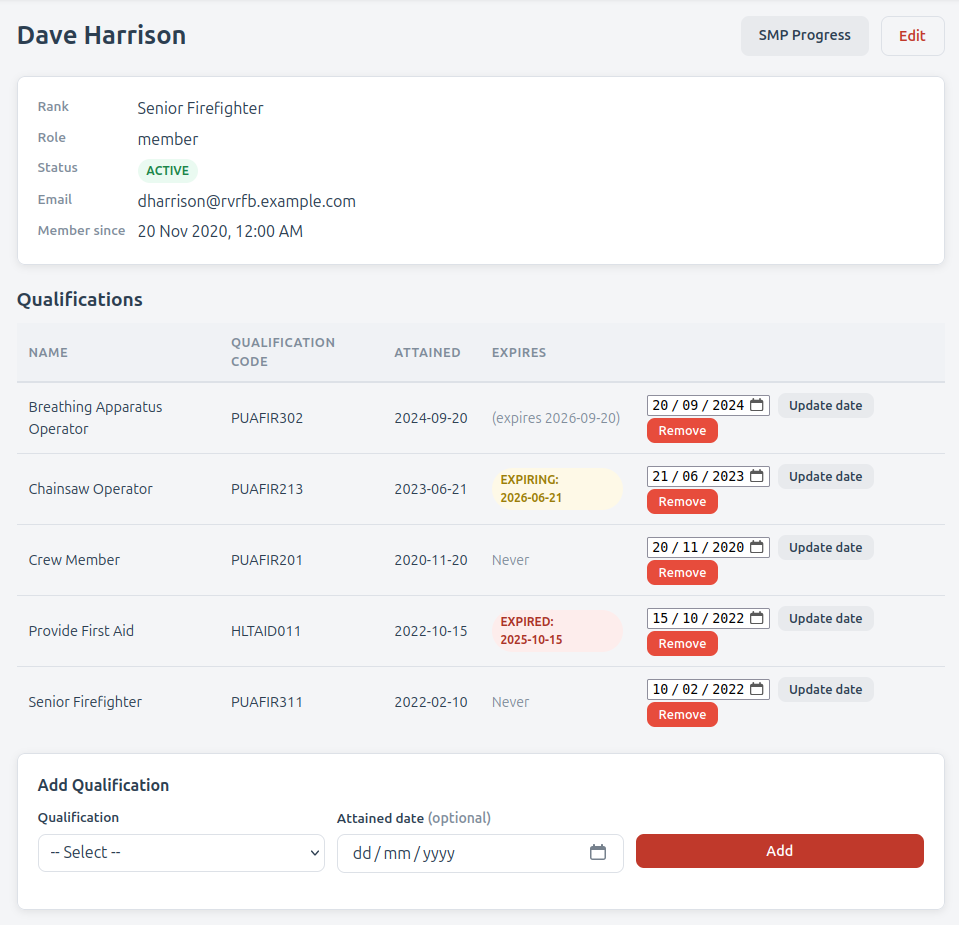
When you Add a qualification, the member receives an email letting them know — naming you, the qualification, its code, and the date attained, with a link to their profile. Useful when you're enrolling someone in a course they might forget they've been added to.
Renew vs remove
If a qualification just expired and the member did the refresher training, use Update date rather than removing and re-adding. It keeps the audit history cleaner.
Recent Training
A member's page also shows a Recent Training table - the sessions they've recently attended, with the date, hours, and any notes. It's a quick way to see what someone has been doing without opening the full report.
Profile photos
Members set their own profile photo from My Profile. If one is inappropriate, you can clear it with Remove photo on the member's page; the member then shows their initials until they upload a new one. Officers can't upload a photo on someone's behalf.
Officer privileges
To promote a member to officer, edit them and change Role to Officer. They get the officer menus (Reports and Admin, plus Flagged within Training) on next page load.
To demote an officer, do the opposite. Beware of demoting the only officer — there is no enforcement against locking yourself out, so make sure at least one officer remains.