Joining a department
You join Firecrest by clicking an invite link your officer gives you. The link contains your department's identifier and is unique to it — it cannot be guessed.
Step 1: open the invite link
Your officer will send you an invite link, either by email or as a printed QR code at the station. Open it in any browser. You will see a Join Department Name form.
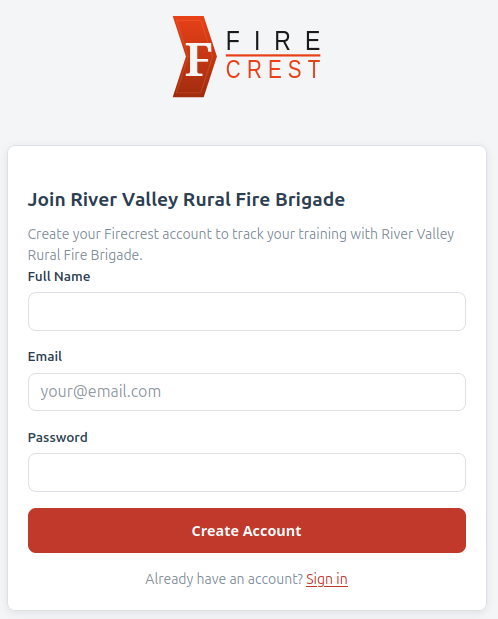
Use the invite link, not the public sign-up form
The Sign Up button on the Firecrest home page is for officers creating a brand new department. If your department is already on Firecrest, only the invite link your officer gives you will join you to the right place — using the public sign-up form by mistake creates an empty, unrelated department.
Step 2: fill in your details
- Full Name — as you want it shown on reports and attendance.
- Email — a real address you have access to. You will need to verify it.
- Password — at least 8 characters. Used for logging into the website.
Click Create Account.
Step 3: wait for approval
After registering you see an Account Pending Approval screen. A department officer will see you in their pending list and approve you. You will receive an email when that happens.
If it's been more than a day or two, give your officer a nudge — they may have missed the notification.
Step 4: verify your email
You will receive an email from Firecrest with a verify your email link. Click it. Until you do, a yellow banner reminds you on every page. There is a Resend verification email link in the banner if the original got lost.
Updating your profile
From My Profile (top-right menu) you can:
- Add a profile photo. Click your avatar and pick an image; it then appears next to your name on the members list, your member page, and attendance. Until you add one, Firecrest shows your initials. Use Remove photo to go back to initials.
- Change your full name and email address. Changing your email triggers a new verification — the new address must be verified before further use.
- Change your password — click the Change Password button to open the dedicated password page. You'll need your current password, plus a new one of at least 8 characters.
- View the qualifications you hold and add new ones from the available list.
- Toggle email notifications. Two preferences are available:
- Email me when my attendance is recorded — confirmation when a scan or officer entry adds attendance for you.
- Email me if my attendance is rejected by an officer — heads-up if a flagged record of yours is deleted on review.
Your rank, status, and role are managed by an officer — you cannot change them yourself.
Active sessions
The Active Sessions card on My Profile lists every device currently signed in to your account. Each row shows when you logged in, the browser, the IP address, and a rough location (city / country, looked up from the IP).
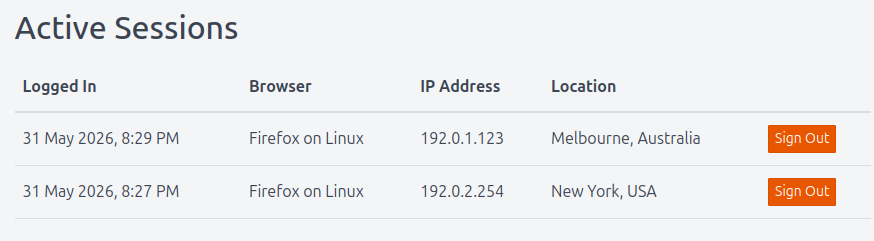
Use this if you logged in on a friend's phone, a public computer, or any device you no longer want to stay signed in on. Hit Sign Out on the row to end that specific session — the other devices stay logged in.
If you see a session you don't recognise, sign it out immediately and change your password.
Logging in afterward
Once your account is approved, head to the Firecrest home page and click Sign In. Enter your email and password and you're in. By default your login persists for 30 days, so you should rarely need to log in again on the same device.
Forgotten your password? Click the Forgot password? link on the Sign In page and Firecrest will email you a reset link (valid for 12 hours).
To log out, click your name in the top-right corner and choose Logout.