Department settings
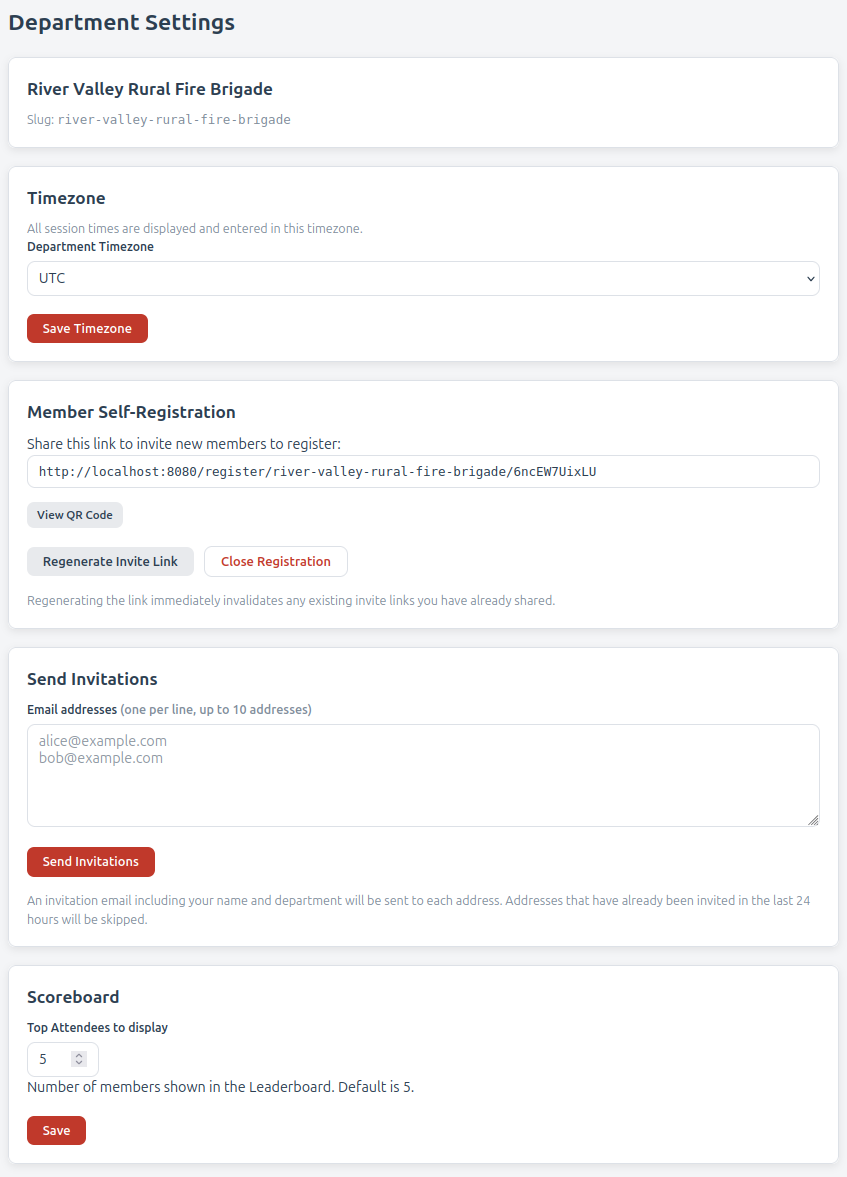
The Department Settings page (Admin → Department Settings) is where you configure your department's name and timezone, the invite link used by new members, and from where you send invitations.
Department name
Edit the Department Name field and click Save to rename your department. The new name shows everywhere members see it - the nav, emails, reports, and the kiosk.
Timezone
All session times across the app — what you type in when creating a session, and what members see when they scan a QR code — use the department timezone.
Pick the IANA timezone closest to where your department operates (e.g.
Australia/Sydney). Times in the database are always stored in UTC and converted on
display, so changing this is safe.
Click Save Timezone to apply.
Member self-registration
Firecrest does not require you to enter every member by hand. Instead, you share a per-department invite link and members register themselves.
Your invite link is displayed at the top of the Member Self-Registration card on this page. It's unique to your department and contains a randomly generated code that you can rotate at any time.
Sharing the link
Three options:
- Copy the link from the Member Self-Registration card and paste it into an email, Slack channel, or notice board.
- Click View QR Code to open a printable QR code page — print it and pin it up at the station. Members scan it with their phone camera and follow the prompt.
- Use the Send Invitations form below (recommended for new joins).
Rotating the code
Click Regenerate Invite Link to issue a new code. The old link stops working immediately. Use this if a link has leaked or you simply want to close the window on a recruitment drive.
Closing registration
Click Close Registration to disable self-registration entirely. The invite link will show "This department is not currently accepting new members." You can reopen later by clicking Regenerate Invite Link.
Sending invitations
The Send Invitations card lets you send Firecrest-branded invitation emails to prospective members. Paste one email address per line (up to ten by default). Click Send Invitations.
Each address is processed independently. The flash message after submission lists exactly what happened to each one. Possible outcomes per address:
| Result | Cause |
|---|---|
| Invited | Email sent successfully. |
| Invalid address | Not a syntactically valid email. |
| Disposable address not allowed | The domain is on Firecrest's disposable-mail blocklist. |
| Already a member | This email already belongs to a Firecrest account somewhere. |
| Skipped (invited recently) | This address was already invited from your department in the last 24 hours. |
The 24-hour cooldown prevents accidentally spamming the same person if you click the button twice or rebuild a list. It is case-insensitive and per-address.
What the email contains
The invitation email is sent from your Firecrest instance, identifies you as the sender by name, names the department, and contains the direct registration link. The recipient does not need to enter a code by hand.
What if I never want anyone to self-register?
Click Close Registration. Then add members manually:
- For each new member, go to Admin → Members → + New Member.
- Fill in their name, email, and rank.
- Set a password if you want them to be able to sign in — members must be signed in to scan a QR code and record their own attendance. Leave it blank for record-only members whose attendance you'll always enter manually.
You can also keep self-registration on and approve case-by-case from the Pending Approval list.
Session settings
The Sessions tab has one setting:
- QR Early Scan Window (minutes) — how many minutes before a session's start
time members can begin scanning the QR code. Set it to
0to only allow scanning from the start time onward. Members who scan before the window opens see a "QR scanning opens at …" message.
Scoreboard
The Scoreboard page is visible to every member. The Scoreboard tab of Department Settings has two controls:
-
Top Attendees to display — the number of members shown in the Leaderboard card. Accepts any whole number from 1 to 20; the default is 5.
Lower numbers feel more elite (top 3, top 5); higher numbers give more members a chance to see themselves on the board. Pick whatever suits the size of your department.
-
Include incidents in scoreboard calculations — when ticked, attendance at incidents counts toward the Leaderboard alongside training. Leave it off to rank members on training attendance only.
Change either and click Save.
The Honour Roll cards (Current Training Streak, All SMPs Met) are not configurable — they show whoever qualifies, however many that turns out to be.