Inventory
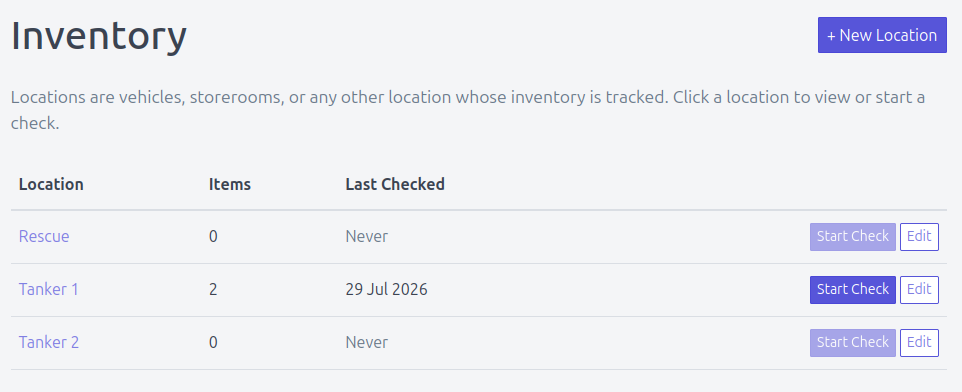
Inventory tracks the equipment your department keeps and lets anyone run a check to confirm it's all there. A truck's lockers, a storeroom's shelves, a first-aid kit - each becomes a location with a list of items, and members work through that list marking each one present or absent.
Everyone gets Inventory in the top nav. Members can open any location and run a check; officers additionally build and edit the locations and their contents.
Setting up a location
Click + New Location and give it a name - a vehicle, a storeroom, or anything else whose contents you want to track (e.g. Pumper 1, Tool Store). You land on the location's edit page, where you add its contents.
Each thing you add is either:
- An item - a physical thing to check off, with an optional quantity (e.g. Hose Reel, or Spanner x 4).
- A group - a heading with no quantity that holds other items, so you can mirror how the gear is actually stored (e.g. a locker, a compartment, a shelf). Groups can nest.
When you Add Item, choose its parent - the location itself, or one of its groups. Build the tree to match reality so a member checking the truck can follow it locker by locker.
Keep names checkable
Name items the way they'll be recognised in the field. A member running a check sees exactly these names, so "BA Set A" beats "Breathing apparatus (primary)".
Deleting is on the same edit page. An item that already appears in past checks can't be deleted (its history would be lost) - leave it in place instead.
Running a check
This part is for everyone, officer or not.
From the Inventory list, click Start Check on a location (or open the location and choose Full Check). Firecrest shows every item; for each one tap Present or Absent, and add a short Note if something needs explaining ("only 3 of 4", "seal broken"). There's a Notes box at the end for any general observations.
Your answers save as you go, so if you're interrupted - a call comes in, your phone dies - the check is preserved and nothing is lost. Tap Done when you've worked through the list.
Checking just part of a location
You don't have to do the whole truck every time. On a location's page, each group has its own Check Now button, so you can check a single locker or compartment on its own. These partial checks are labelled as such in the history.
Check history and coverage
Each location keeps a Check History: who checked it, when, and the coverage - how much of the location that check covered (a full check is 100%; a single-group check less). The Inventory list also shows each location's Last Checked time at a glance, so it's easy to spot gear that hasn't been looked at in a while.
Officers can delete a check from the history if it was logged in error.