Reports
The Reports menu in the navbar collects every cross-cutting view Firecrest offers.
All reports below are officer-only and live under the Reports dropdown. The exception is the Dashboard - its own top-level nav item that any member sees for themselves, and that you as an officer can also view for anyone else.
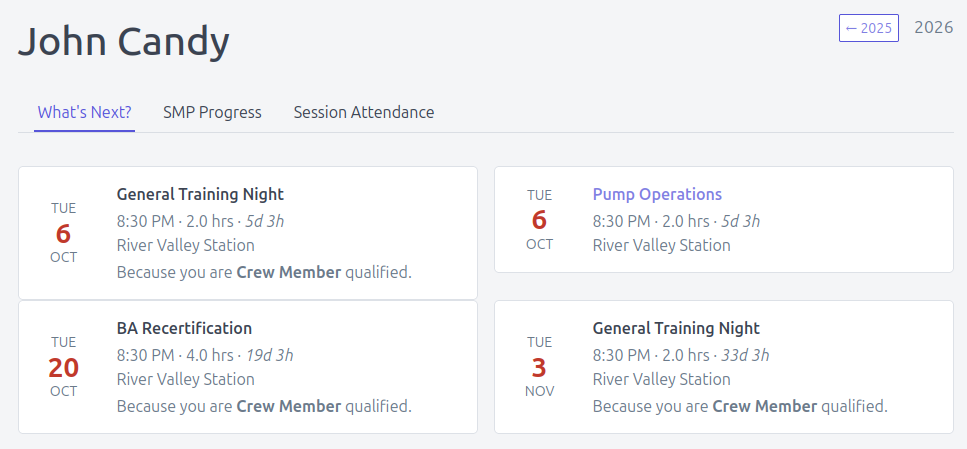
Dashboard / Member progress
Your own Dashboard is a top-level nav item. To see another member's progress, open their member page from the Members list and click SMP Progress at the top.
This is the page that answers "how am I tracking against my SMPs this period?" For each SMP the member is on, it shows:
- The SMP name and linked qualification
- A horizontal progress bar with two markers: hours logged (filled bar) and the pro-rated expected target (vertical line)
- The status badge: Met / Ahead / On Track / Behind
- A short hours summary (logged vs. required, plus the expected target for now)
- A warning if the linked qualification is expired or expiring
Below the SMP cards, a table lists every session the member attended in the period, with the hours and which SMPs each session contributed to.
Officers and the member themselves can Export PDF for an individual report — handy for printed records.
Department Progress (SMP progress, all members)
Reports → Department Progress.
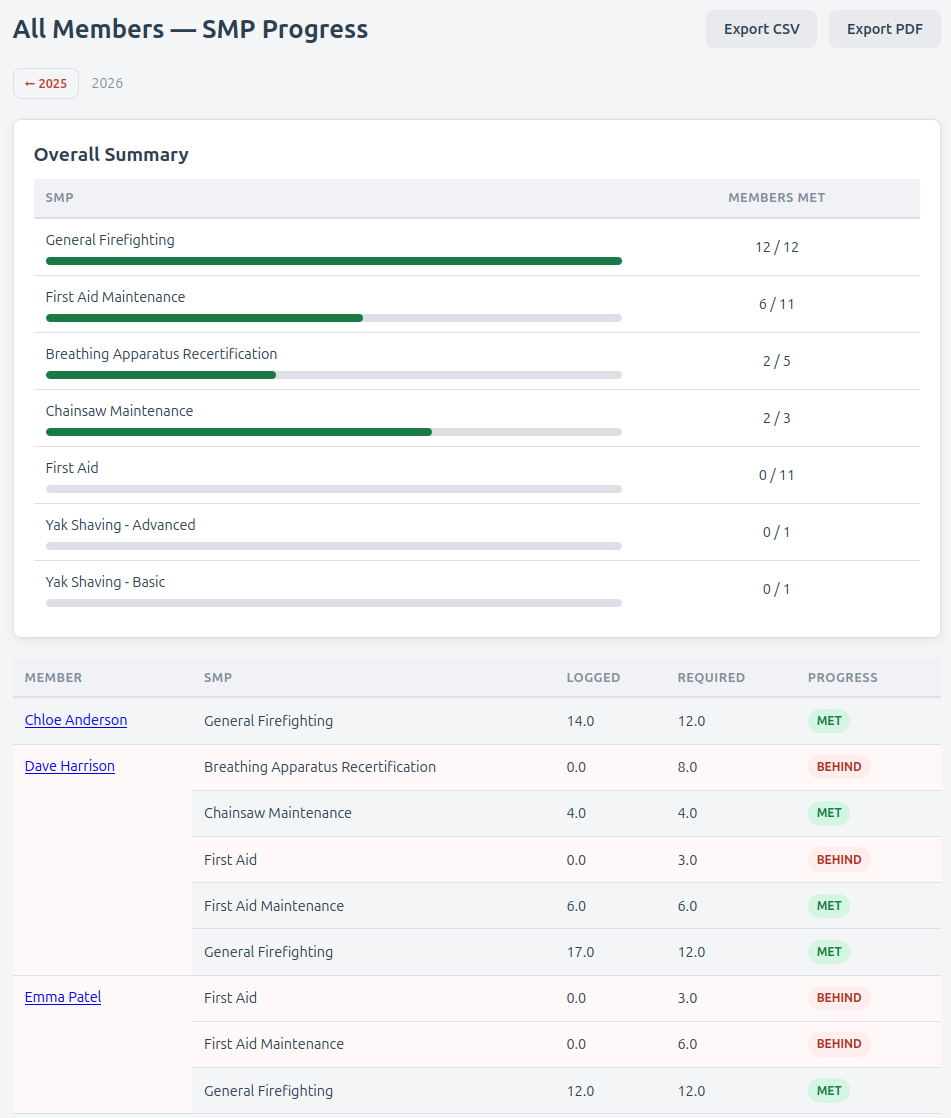
A table that lists every active member, every SMP they have, the logged hours, required hours and a status badge. Rows showing Behind are highlighted.
Year navigation (previous / next year) is at the top. CSV and PDF export buttons are at the top right.
Use this report to find members who need attention before annual reporting time.
Overall Summary
Above the per-member table, an Overall Summary card shows how each SMP is tracking across the whole department — one row per SMP with Members Met: X / Y and a progress bar. X is the number of members who have already hit the minimum hours for that SMP; Y is the total number of members it applies to.
A glance tells you which SMPs the department as a whole is on top of, and which ones need a push.
Drilling into one SMP
Click an SMP name in the Overall Summary to focus the report on that one program. You get a single table of every member it applies to, with each member's logged hours against the target - so you can see exactly who is behind on that skill. Click Clear filter to return to the full view.
Attendance Rate
Reports → Attendance Rate.
A table of every member with the number of sessions they attended out of the total held this period, plus a progress bar visualising the attendance rate.
The total counts every session and incident in the period — so a low rate isn't necessarily a problem (people don't attend every callout). Use alongside Stale Members for a fuller picture.
Stale Members
Reports → Stale Members.
Members who have not attended a single session in the last 3 months.
This is your "who do I need to follow up with?" list. If a member appears here month after month, consider whether to mark them as Inactive.
Qualification Expiry
Reports → Qualification Expiry.
Three buckets:
- Within 30 days (urgent — red)
- Within 60 days (warning — orange)
- Within 90 days (info — neutral)
Plus an Expired badge against anyone whose qualification has already lapsed.
Session Summary
Reports → Session Summary.
Every session and incident in the period, with headcount, hours per attendee, and total person-hours. The type filter bar at the top toggles All / Training / Incidents. Year navigation prev/next.
Use this for end-of-year reporting on department training output.